

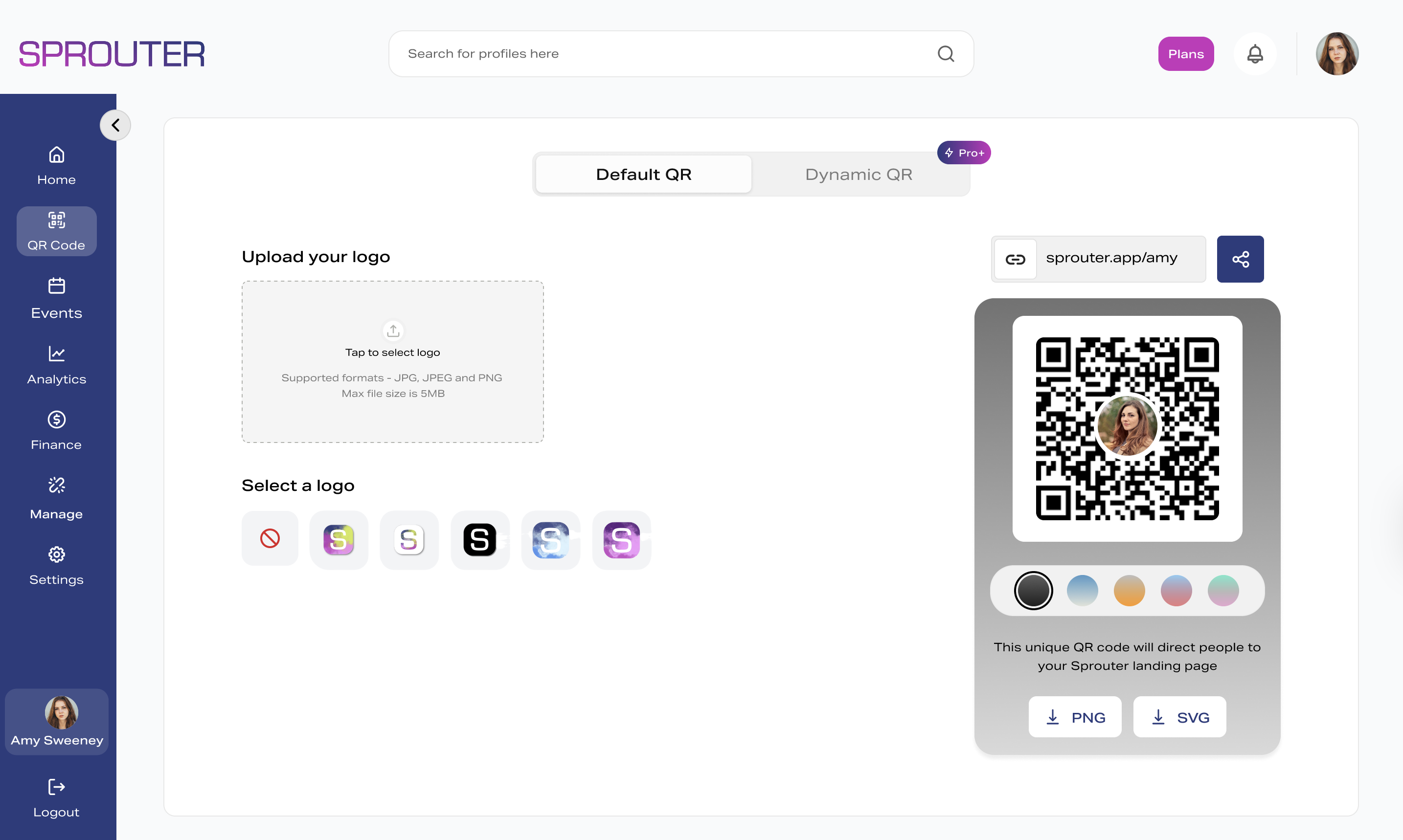
Creating a QR code that meets GS1 standards requires more than generating a code and sticking it on a box. The code must contain a properly structured GS1 Digital Link URL, pass print quality requirements, and scan reliably at both POS terminals and smartphone cameras.
This guide walks through each step, from GTIN registration to final print validation.
Prerequisites
Before generating any QR codes, you need:
- A GS1 Company Prefix — Obtained through your local GS1 Member Organization (e.g., GS1 US, GS1 UK)
- Valid GTINs — Global Trade Item Numbers assigned to each product, registered in the GS1 Registry Platform
- A GS1-conformant resolver — The server that hosts your Digital Link endpoints (Sprouter provides this)
If you don’t have a GS1 Company Prefix, start at gs1.org to find your local member organization. This is a prerequisite — you cannot create GS1-compliant codes with made-up numbers.
Step 1: Validate Your GTIN
Your GTIN must be:
- Registered with GS1 (not just a number you assigned internally)
- Active in the GS1 Registry Platform
- Check-digit valid — The last digit is a calculated check digit, not arbitrary
- Properly formatted — GTIN-8, GTIN-12, GTIN-13, or GTIN-14
Common mistake: Using internal SKU numbers or RCNs (Restricted Circulation Numbers) instead of registered GTINs. RCNs starting with prefix 02 or 2x are for internal use only and will not work at other retailers’ POS systems.
Use Sprouter’s compliance checker to validate your GTINs before proceeding.
Step 2: Build Your GS1 Digital Link URL
The URL follows this structure:
https://{resolver}/{ai}/{value}For a product with GTIN 09506000134376:
https://sprouter.gs/01/09506000134376Optional data elements you can add:
| Application Identifier | Meaning | URL Segment |
|---|---|---|
| 01 | GTIN | /01/09506000134376 |
| 10 | Batch/Lot | /10/ABC123 |
| 21 | Serial Number | /21/12345 |
| 17 | Expiry Date | /17/271231 |
A fully loaded URL:
https://sprouter.gs/01/09506000134376/10/LOT2026Q2/21/SN00001Important: More data means a denser QR code, which requires a larger print size. Only include data elements that your use case requires.
Step 3: Configure Your Resolver
The resolver is the server that responds when someone scans your code. It needs to return appropriate content based on who’s scanning:
- POS terminal request → Return product identification data
- Consumer smartphone → Redirect to product page, nutrition info, or promotional content
- Regulatory query → Return safety data sheet or compliance documentation
At minimum, configure these link types:
- Product information page (
gs1:pip) — The default consumer-facing landing page - Product data (
gs1:epil) — Machine-readable product data for POS/supply chain
Sprouter’s resolver supports all 57 GS1 link types and handles device detection automatically.
Step 4: Generate the QR Code
With your validated GTIN and configured resolver, generate the QR code. Critical specifications:
Error Correction Level
Use Level M (15% recovery) as the baseline. Use Level Q (25%) or Level H (30%) if the code will be printed on packaging with potential damage, folding, or partial obstruction.
Higher error correction = larger code. Level M is the best balance for most product packaging.
Quiet Zone
Maintain a minimum quiet zone of 4 modules (4x the width of one dark/light unit) on all four sides. This is the blank space around the QR code — it’s required for reliable scanning.
Color
Black modules on white background. This isn’t a style recommendation — it’s a scanning reliability requirement. The minimum contrast ratio is 40%. Avoid:
- Colored modules
- Gradient backgrounds
- Transparent or semi-transparent overlays
- Inverting colors (white on black)
Output Format
| Format | Use Case | Suitable for Print |
|---|---|---|
| SVG | Digital use, scalable print | Yes |
| EPS | Professional print workflows | Yes |
| Print-ready artwork | Yes | |
| PNG | Screen display, digital channels | Screen only (300+ DPI for print) |
| JPEG | Never use for QR codes | No — compression artifacts break scanning |
JPEG compression introduces artifacts at the sharp edges between dark and light modules. These artifacts degrade scan reliability, especially at small print sizes. Always use a lossless format.
Sprouter’s QR generator outputs all four print-ready formats and blocks JPEG generation.
Step 5: Print Specifications
Minimum Size
The absolute minimum for reliable scanning is 15mm × 15mm (approximately 0.6” × 0.6”). For consumer-facing products where you want easy smartphone scanning, target 20mm × 20mm or larger.
Resolution
- Screen: 72-150 DPI is fine
- Print: Minimum 300 DPI, 600+ DPI recommended for small sizes
- Vector formats (SVG, EPS, PDF) are resolution-independent — preferred for print
Substrate Considerations
Different packaging materials affect print quality:
| Material | Risk | Mitigation |
|---|---|---|
| Corrugated cardboard | Ink absorption, rough surface | Increase code size 20%, use Level Q correction |
| Glossy film | Glare interference | Matte finish in code area, test scanning angles |
| Metal/foil | Reflection | Matte overprint, larger quiet zone |
| Clear/transparent | Insufficient contrast | Opaque white backing behind code area |
| Curved surface | Distortion | Increase size, test on actual packaging shape |
Step 6: Validate Before Printing
Before finalizing artwork, validate:
Scan Test
Scan the code with at least three different smartphones at varying distances and angles. It should resolve instantly (under 1 second) in normal lighting.
GTIN Verification
Confirm the scanned URL contains the correct GTIN by checking the URL path.
Resolver Test
Access the URL in a browser and verify:
- Product information page loads correctly
- Content matches the correct product
- Mobile display is formatted properly
POS Simulation
If possible, test with a POS scanner (or POS scanner app) to verify GTIN extraction works correctly.
Print Proof Check
On your first print run, scan codes from actual printed packaging — not the digital file. Print variables (ink spread, dot gain, substrate) can affect scannability.
Checklist Before You Print
- GTIN is registered and valid (check digit passes)
- Digital Link URL follows GS1 structure
- Resolver is configured and responding
- Error correction level is appropriate for packaging type
- Quiet zone meets 4-module minimum
- Output format is SVG, EPS, or PDF (not JPEG)
- Print size meets 15mm minimum (20mm+ recommended)
- Black-on-white with 40%+ contrast ratio
- Code scans successfully on 3+ test devices
- Resolver returns correct product information
Generate Your First Code
Sprouter’s GS1 QR code generator handles GTIN validation, Digital Link URL formatting, resolver configuration, and print-ready output in a single workflow. Enter your GTIN, configure your link types, and download codes ready for your packaging designer.
For a broader view of GS1 readiness, start with our compliance checklist.