

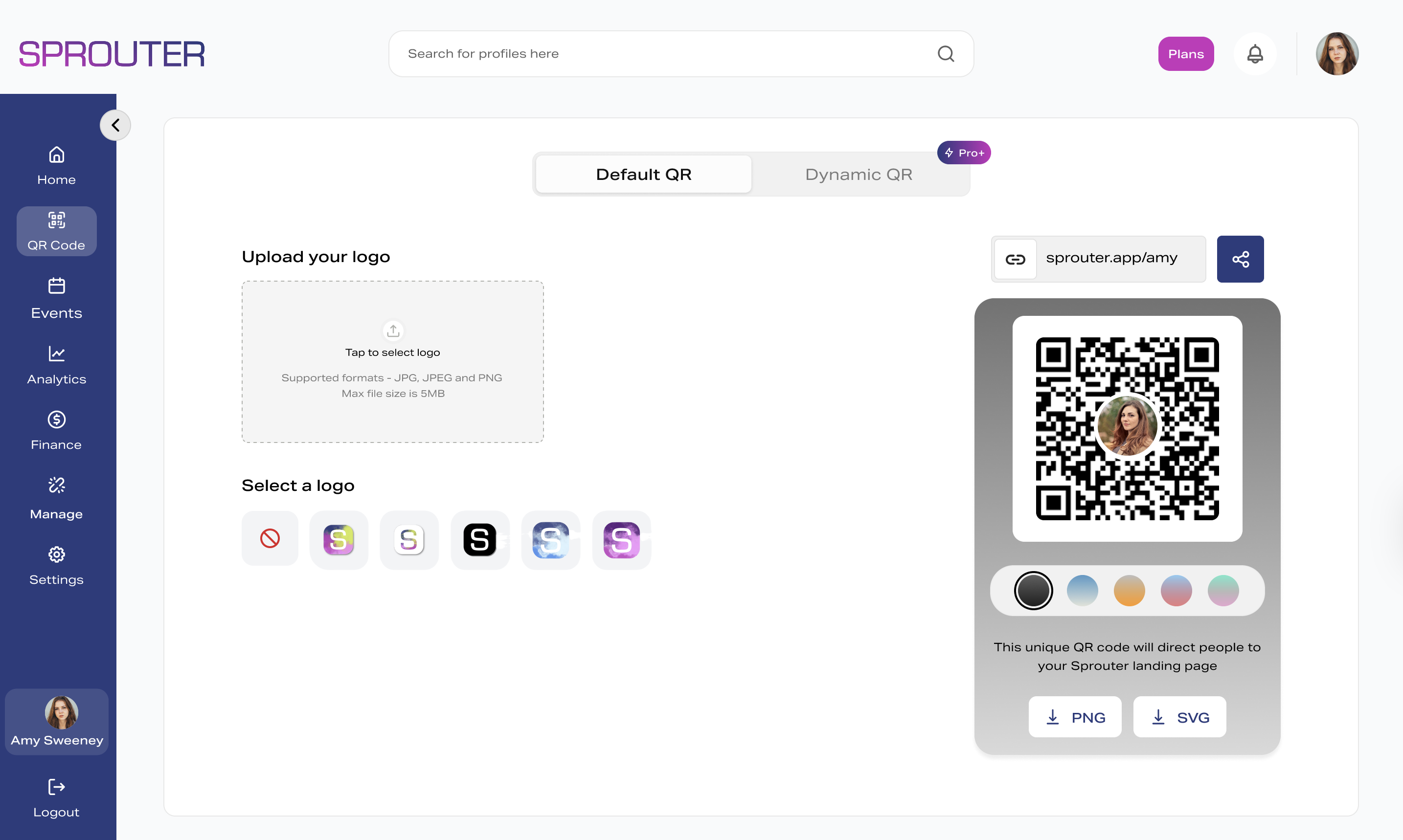
QR code check-in eliminates the clipboard, the printed guest list, and the “let me find your name” bottleneck. Attendees show a code, you scan it, they’re in. A well-configured system processes 15-20 attendees per minute per scanner — compared to 3-5 per minute with manual name lookup.
This guide covers everything from setup to edge case handling.
How QR Code Check-In Works
The flow is simple:
- Attendee purchases a ticket → System generates a unique QR code for their ticket
- Attendee receives the QR code → Via email confirmation, mobile wallet, or downloadable PDF
- At the event → Staff scans the QR code with a phone, tablet, or dedicated scanner
- System validates → Checks the code against the database, marks it as used, shows confirmation
- Attendee enters → Green light, 2 seconds, done
Behind the simplicity is a database lookup that handles duplicate detection, ticket type validation, and real-time attendance tracking.
Setup: What You Need
Hardware
- Minimum: One smartphone with a camera (any modern iPhone or Android)
- Recommended: One device per entrance/check-in lane
- Optional: Dedicated barcode scanner connected via Bluetooth (faster for high-volume events)
You don’t need special equipment. The camera app on any smartphone made after 2018 can scan QR codes natively.
Software
Your ticketing platform should provide:
- QR code generation for each ticket
- A scanner app or web-based scanner interface
- Real-time sync between scanning devices
- Offline mode for venues without reliable internet
Internet Connection
- Ideal: WiFi or cellular at the venue for real-time sync
- Acceptable: Offline mode with post-event sync
- Plan for: Venues with poor cell signal (basements, rural locations, convention centers with overloaded networks)
Step-by-Step Setup
1. Configure Your Event and Tickets
Set up your event with ticket types (General Admission, VIP, Speaker, etc.). Each ticket type can have different:
- Check-in permissions (VIP enters through a separate line)
- Session access (multi-track conferences)
- Time windows (early access, general admission)
2. Generate QR Codes
When a ticket is purchased, the system generates a unique QR code containing:
- A ticket identifier (unique to this specific ticket)
- Ticket type information
- Optionally: attendee name for display at check-in
The QR code should be:
- Unique per ticket — Not per order. If someone buys 4 tickets, they get 4 codes.
- Non-guessable — Random identifiers, not sequential numbers
- Self-contained — The scanner can validate the code without network access (for offline mode)
3. Distribute Tickets
Send QR codes to attendees through multiple channels:
- Email confirmation — Include the QR code as an image in the confirmation email
- Mobile wallet — Apple Wallet / Google Wallet passes with the QR code embedded
- PDF download — Printable ticket with the QR code for attendees who prefer paper
- In-app — If you have a mobile app, display the code in the app
Pro tip: Send a reminder email 24 hours before the event with the QR code prominently displayed. This reduces “I can’t find my ticket” delays at check-in.
4. Set Up Scanning Devices
On the day of the event:
- Download or open the scanning app on each device
- Log in with your event credentials
- Select the event and entrance/check-in point
- Test-scan a sample code to verify connectivity
- Configure sound/vibration feedback (essential in loud venues)
Pro tip: Charge all devices to 100% before the event. QR scanning with the camera active drains batteries fast. Bring portable chargers.
5. Brief Your Check-In Staff
Train staff on:
- How to hold the device for fast scanning (angle, distance)
- What a successful scan looks like (green confirmation)
- What a failed scan looks like (red alert) and what to do
- How to handle walk-ups and name-based lookup
- How to switch to offline mode if internet drops
- Who to escalate issues to
Handling Edge Cases
Every event has edge cases. Plan for them:
“I Bought Tickets but Don’t Have My QR Code”
Have a name-search fallback. The scanner app should let staff search by attendee name or email and manually check them in.
Duplicate Scans
When the same QR code is scanned twice, the system should:
- Show an alert: “This ticket was already scanned at [time]”
- Display the attendee name so staff can verify
- Require manual override to allow entry (don’t auto-reject — the first scan might have been accidental)
Walk-Up Purchases
If you allow on-site ticket sales:
- Staff can create a ticket on the spot
- The system generates a QR code immediately
- The attendee can be scanned in right after purchase
Group Tickets
If one person bought multiple tickets:
- Each ticket has its own QR code
- The buyer can forward individual codes to each attendee
- Or: display all codes on one phone and scan them sequentially
Transferred Tickets
If attendees can transfer tickets:
- The QR code should stay the same (the code identifies the ticket, not the person)
- Update the attendee name in the system if needed for the check-in display
Offline Mode
Internet at event venues is unreliable. Your check-in system must work without it.
Before the event:
- Sync the full attendee/ticket list to each scanning device
- The device stores the complete database locally
During the event (offline):
- Scans are validated against the local database
- Check-ins are recorded locally with timestamps
When internet returns:
- Local records sync with the central database
- Conflict resolution handles any duplicate scans across devices
The risk of offline mode: Two scanning devices can’t see each other’s scans. If the same QR code is presented at two different entrances simultaneously while offline, both will show a valid scan. For most events, this risk is negligible. For high-security events, maintain at least one connected device per entrance.
Check-In Analytics
Good check-in data helps you plan better events:
Real-Time Metrics
- Attendance count — How many people are actually here vs. tickets sold
- Check-in velocity — Attendees per minute, by entrance
- No-show rate — Percentage of tickets unused
- Peak arrival time — When most attendees arrive
Post-Event Analysis
- Show-up rate by ticket type — VIP attendees typically have higher attendance rates
- Arrival distribution — Did attendees arrive on time or late?
- Check-in bottlenecks — Which entrances had the longest waits?
- Walk-up vs. pre-sale ratio — How many tickets sold at the door?
This data directly improves future events: schedule more staff during peak arrival, open additional entrances if a specific line is slow, adjust event start times based on actual arrival patterns.
Print Quality for Ticket QR Codes
If attendees print their tickets, the QR code must survive printing:
- Minimum print size: 20mm × 20mm (larger is better for phone-printed tickets)
- High contrast: Black on white, never colored or on a patterned background
- Error correction: Level M minimum, Level Q for tickets that might get folded or crumpled
- No JPEG: Email the QR as a PNG or PDF attachment, not a compressed JPEG
For detailed guidance on QR code print specifications, see our QR code generation guide.
Getting Started with Sprouter
Sprouter’s event ticketing includes QR code check-in with:
- GS1-compliant QR codes — Industry-standard code generation
- Multi-device scanning — Unlimited scanning devices per event
- Offline mode — Full attendee database cached locally
- Real-time analytics — Check-in velocity, attendance, and no-show tracking
- Duplicate detection — Automatic alerts for re-scanned codes
- Walk-up support — On-site ticket creation and immediate check-in
Set up your event, sell tickets, and run check-in from a single platform. No separate check-in app required.